How to unsend an email on Gmail, Outlook (and more)

Learn how to unsend emails in Superhuman Mail Gmail, Outlook, and Apple Mail. Compare unsend features, timing windows, and why speed matters for catching email mistakes.

You hit send. Then you see it. The typo in your boss's name. The attachment you forgot. The wrong person in the CC line.
That sinking feeling hits immediately. You've sent hundreds of emails that went perfectly fine, but this one has a mistake that could range from mildly embarrassing to genuinely problematic. Can you unsend it? The answer depends on your email client, your timing, and how fast you can react.
Most email platforms offer some form of unsend functionality, but these features vary dramatically in reliability and effectiveness. Gmail, Outlook, and Apple Mail all provide basic undo send capabilities, yet they're often too slow, too limited, or too unreliable when you need them most.
This guide shows you exactly how unsending works across major platforms, reveals the critical limitations that make most unsend features inadequate, and explains why speed determines whether your undo attempt actually works.
The three ways to unsend an email and their limitations
Not all unsend features work the same way. There are three distinct technical approaches, each with different success rates and reliability. Understanding how they work helps you know what to expect when you need to unsend an email.
Undo send with short buffer
The most common approach delays email transmission for 5 to 30 seconds, giving you a brief window to cancel before the message leaves your outbox. This delay-based mechanism works in Gmail, Apple Mail, Outlook Web, and Superhuman Mail. Think of it like a grace period where your email sits in a holding pattern before actually sending.
Limitation: The window is time-restricted and often too short to catch mistakes, especially when you're multitasking or distracted. If you've already moved to your next task, you might miss your chance entirely.
Recall for Outlook only
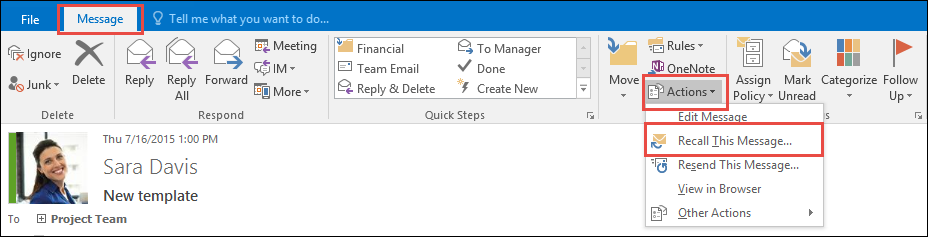
Microsoft Outlook attempts to delete emails that have already been delivered to recipients' inboxes. This server-side recall sends instructions to delete the original message after it's been sent.
Limitation: Both sender and recipient must use the same organization's Exchange server. The email must remain unread. The recall frequently fails in real-world settings.
Here’s how to recall email in Outlook
Delayed send
Some platforms let you hold emails in your outbox for extended periods, up to 120 minutes in Outlook, before transmission. This gives you time to reconsider before the email actually sends.
Limitation: This helps prevent mistakes but doesn't help once the email has left your outbox and reached the recipient. It's preventive, not reactive.
How to unsend an email in popular email clients
Let's walk through exactly how unsend works in each major email platform. Each has its own process, limitations, and quirks you need to know about.
Gmail for desktop and mobile
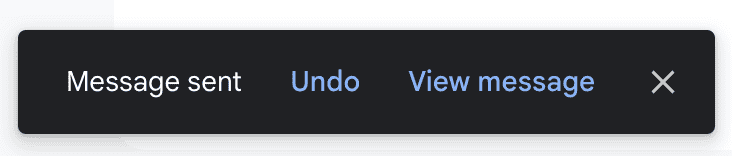
Gmail offers one of the most straightforward undo send implementations with a configurable delay window. After you send an email, a small notification appears at the bottom of your screen saying "Message sent" with an "Undo" button next to it.
Steps to use undo send:
- After sending an email, look for the "Message sent" notification with an Undo button
- Click Undo within your configured time window
- Your email reopens as a draft for editing or deletion
What undo-send looks like in Gmail
Extend undo window to 30 seconds:
- Click Settings gear icon, then See all settings
- Under the General tab, find Undo Send
- Set Send cancellation period to 30 seconds, the maximum available
- Click Save Changes
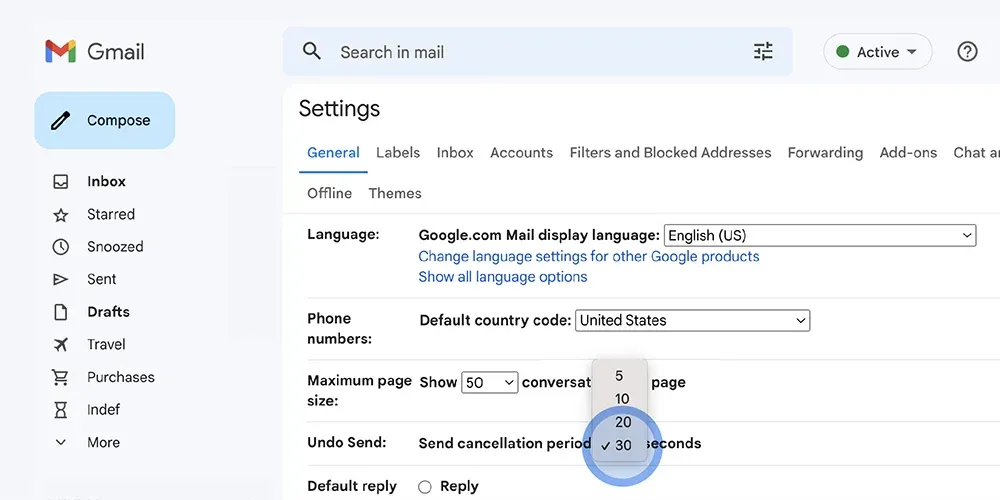
For more ways to optimize your Gmail settings, check out these Gmail tips and tricks.
Key limitations you'll face:
- Maximum 30-second window on desktop
- Mobile apps are limited to 5 seconds regardless of your web settings
- No recall capability for emails already delivered
- Relies on visual notifications that can be easily missed when you're focused on something else
The mobile limitation is particularly frustrating. You can set Gmail to 30 seconds on your computer, but your phone will only give you 5 seconds to catch mistakes.
Since most professionals now handle email on mobile devices, this creates a significant gap in protection exactly when you need it most. Mobile email management demands the same protection as desktop, but most clients don't deliver.
Outlook for web, desktop, and mobile
Microsoft Outlook offers the most complex unsend landscape with different features depending on your platform and account type. What works on desktop might not work on mobile, and what works within your organization might fail for external emails.
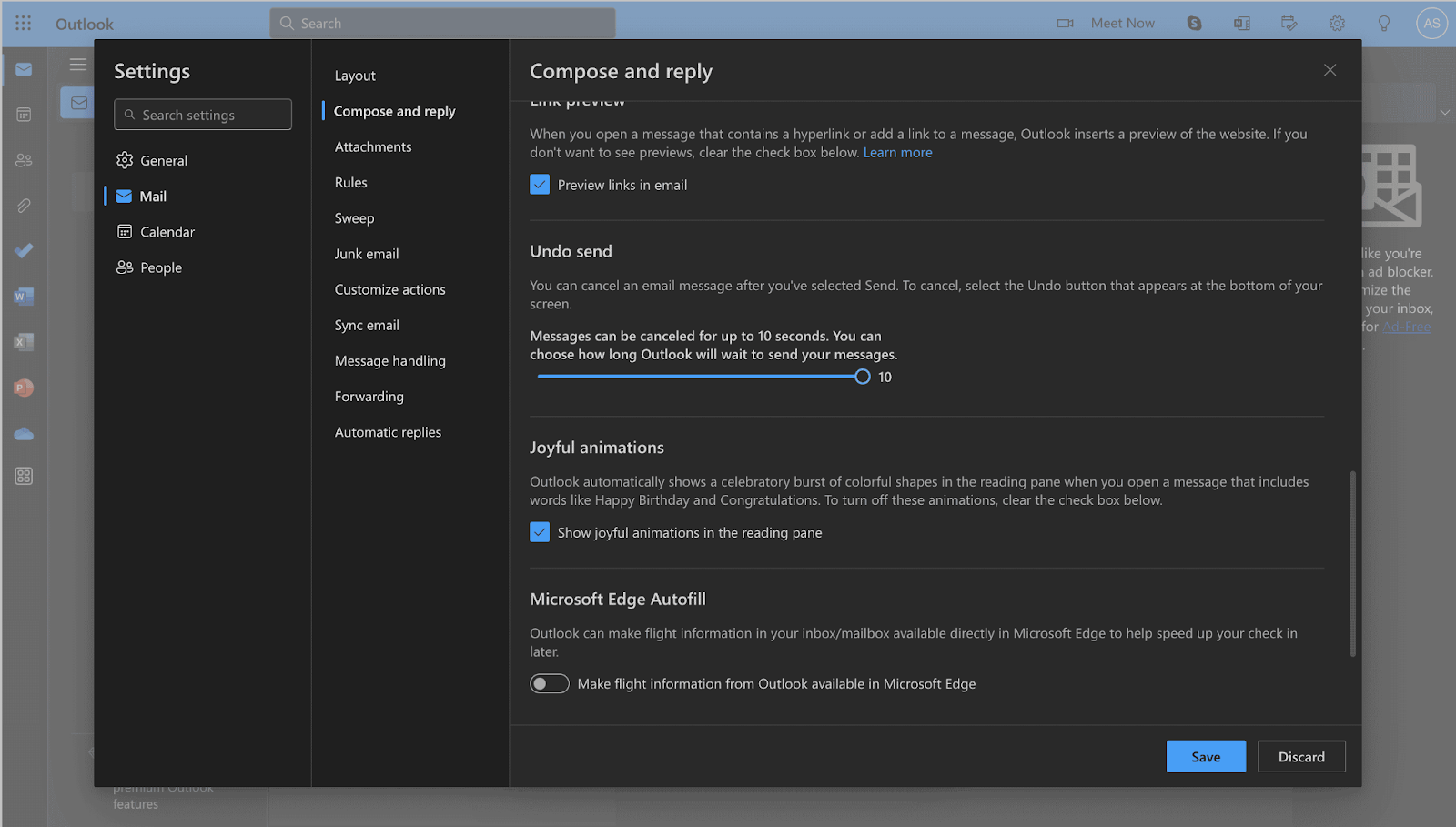
Undo send on web:
- Go to Settings, then Compose and reply
- Enable Undo send and set delay up to 10 seconds
- Click Undo in the notification after sending
Here is what undo-send looks like on web
Recall on desktop with constraints and failure cases:
- Open the sent email from Sent Items
- Go to File, then Info, then Message Resend or Recall
- Choose Delete unread copies or replace with new message
Critical recall limitations:
- Only works within same Exchange organization
- Recipient must not have read the email
- Fails with external email addresses like Gmail or Yahoo
Outlook mobile: No undo send capability currently exists, though Microsoft has announced this feature is coming to mobile platforms. Until then, you're out of luck if you catch a mistake on your phone.
The recall feature sounds powerful but fails in most real-world scenarios. If you email someone outside your company, it won't work. If they've already opened the email, it won't work. If they use Gmail instead of Outlook, it won't work. You're left with a feature that only functions in a narrow set of circumstances.
Apple Mail
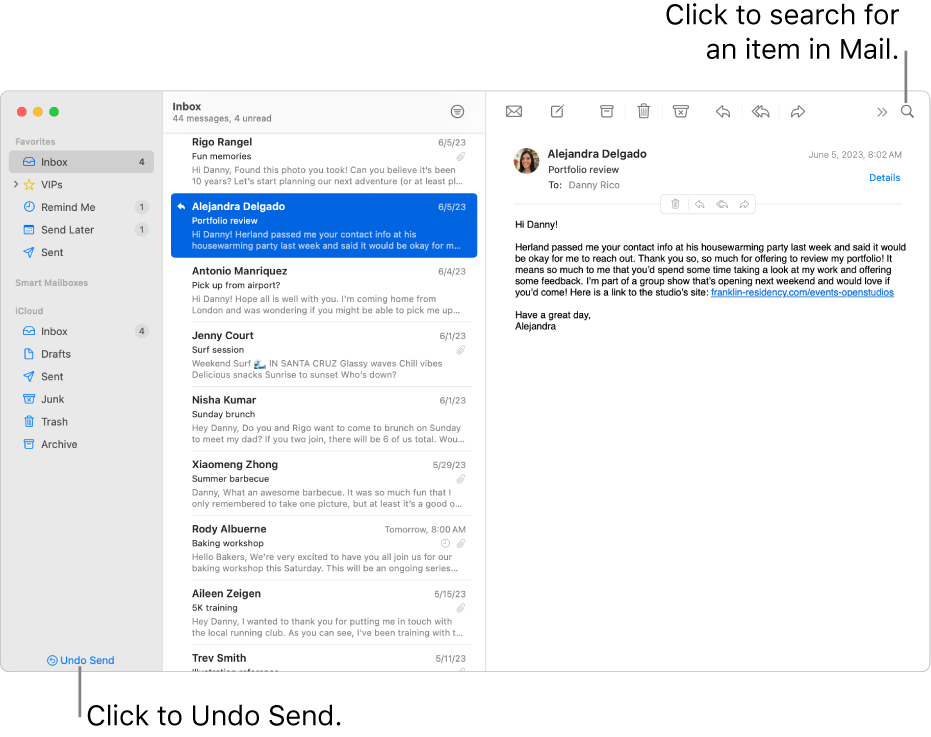
Apple Mail introduced undo send with macOS Ventura and iOS 16, offering a 10-second default window. The implementation is clean and simple, matching Apple's typical design philosophy.
How to use:
- Mac: Click Undo Send at bottom of screen within 10 seconds
- iOS and iPad: Tap Undo Send within the delay window
How it looks like on iOS and iPad
Configure delay:
- Mac: Go to Mail, then Settings, then Composing, then Undo send delay up to 30 seconds
- iOS: Go to Settings, then Mail, then Undo Send Delay
Important limitations:
- Critical bug exists where force-quitting Mail app can cause emails to disappear entirely
- Doesn't work with Mail Drop large attachments
- Only available on recent OS versions
The bug where emails disappear is particularly concerning. Force-quitting an app is a common troubleshooting step, but doing it with Apple Mail while an email is in the unsend window can make that email vanish completely. It doesn't send and it doesn't save as a draft.
Other clients like Yahoo and Zoho
Yahoo Mail: No undo send on web. Mobile apps offer only 3 to 5 seconds, which is essentially unusable. By the time you realize there's a mistake, your window has closed.
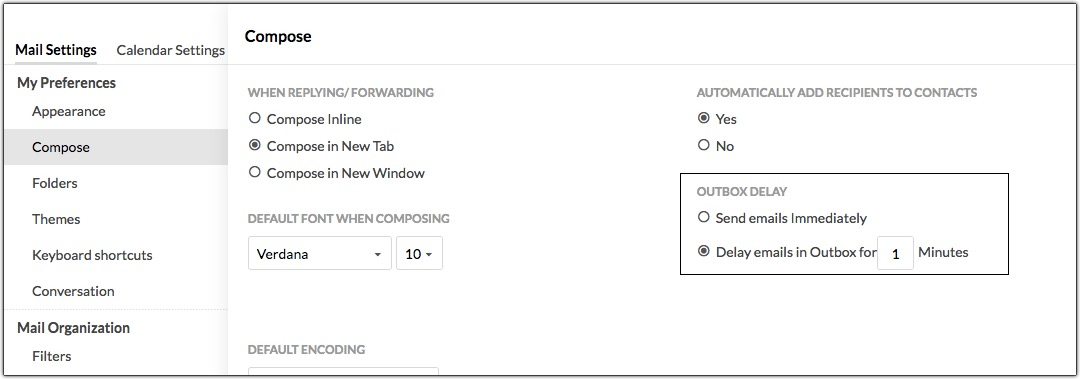
Zoho Mail: Offers undo send for 5 to 30 seconds and outbox delay up to 120 minutes for paid accounts. This gives you more flexibility if you're using their paid tier.
Here’s Zoho’s version of undo send
Legacy IMAP and POP: Third-party clients accessing these protocols typically lack unsend functionality entirely. You're relying on whatever the client software provides, which is often nothing.
Where traditional unsend options fail
Despite widespread availability, traditional unsend features fail customers when they need them most. Here's why these implementations fall short in real-world use.
Picture this: You send an important email to a client. Three seconds later, you notice you wrote "looking forward to working with you" when you meant to write their company name. You click undo.
But the client is online and checking email actively. They've already opened it. Your 30-second window means nothing because the email delivered in less than a second.
Network speeds and server processing can result in near-instantaneous delivery, making even 30-second windows ineffective if the recipient checks email immediately.
- Outlook recall fails across providers: The majority of business emails are sent externally, where Outlook's recall feature simply doesn't work. You might think you're protected because you have the recall option, but it fails more often than it succeeds.
- Cross-client inconsistencies create confusion: Gmail's mobile limitation to 5 seconds, Outlook's complete lack of mobile unsend, and Apple Mail's technical bugs create unreliable experiences across devices. You learn one behavior on the desktop and discover it doesn't work the same way on your phone.
- Mobile apps lacking undo send: Email is increasingly managed on smartphones. The absence of reliable mobile unsend capabilities represents a critical gap. You're checking email between meetings, responding quickly, and making mistakes under time pressure. That's exactly when you need unsend most, and it's exactly when it's least available.
- Client speed determines undo success: Slow-loading email clients reduce the effective time available for catching mistakes. If your email app takes 3 seconds to load after you hit send, you've lost 10% of a 30-second window before you can even see the undo button. Customers move on to other tasks before noticing errors because the interface doesn't respond fast enough.
Just like other productivity tools catch mistakes in real-time, fast email clients catch sending mistakes before they become permanent. Speed matters because human reaction time stays constant while technology speed varies dramatically. When you're managing high email volumes, every second counts in your ability to catch and correct mistakes before they reach recipients.
The fastest and most reliable unsend experience with Superhuman Mail
Superhuman Mail takes a different approach. Instead of relying on visual notifications you might miss, it puts unsend at your fingertips through instant keyboard shortcuts that work the moment you realize you've made a mistake.
Instant undo with Ctrl+Z or Cmd+Z
Superhuman Mail delivers the fastest unsend experience available through universal keyboard shortcuts that work instantly across all connected accounts. Press Ctrl+Z on Windows or Cmd+Z on Mac immediately after sending any email to cancel transmission. No hunting for buttons or waiting for notifications.
This speed advantage proves crucial because the faster you can execute an undo, the higher the chance of success. While other clients require you to locate and click specific UI elements, Superhuman Mail's keyboard-first approach enables immediate action. Your muscle memory handles the undo before your conscious mind finishes processing the mistake.
Why Superhuman Mail is more reliable
Speed isn't just about feeling fast. When your email client responds instantly, you preserve more of your undo window for actually catching mistakes. Every millisecond your client spends loading or processing is time you can't use to react. Here's how Superhuman Mail's architecture creates higher success rates for unsending.
Speed preserves meaningful undo window: Superhuman Mail's sub-100ms response time means every action happens instantaneously, preserving maximum time within any delay window for catching errors. Other clients might take 2-3 seconds just to display the undo option. That delay matters.
Faster client creates higher chance undo works: When your email client responds instantly, you're more likely to notice and correct mistakes before transmission completes. The interface doesn't slow down your reaction time.
Universal functionality: Works consistently across Gmail and Outlook accounts connected to Superhuman Mail, eliminating platform-specific limitations. You learn one behavior that works everywhere.
Where Superhuman Mail outperforms Gmail, Outlook, and Apple Mail
Let's put the speed advantage into context by comparing how Superhuman Mail handles unsend against each major platform. The differences become clear when you look at mobile support, interface speed, and reliability across different scenarios.
- Compared to Outlook mobile: Superhuman Mail provides full unsend capability on mobile while Outlook offers none. You get the same protection whether you're at your desk or checking email on your phone.
- Compared to Gmail: Superhuman Mail's instant Ctrl+Z beats hunting for undo notifications, and its speed ensures you stay within the delay window. You don't waste seconds searching for the undo button.
- Compared to Apple Mail: No risk of emails disappearing due to technical bugs, and faster response times increase success rates. The implementation is reliable and consistent.
- Speed advantage: Every interaction in Superhuman Mail happens in under 100ms, compared to multi-second delays in traditional clients that reduce effective undo time. This isn't just about feeling faster. It's about having more actual time to catch mistakes.
Teams using Superhuman Mail save 4 hours per person every week through speed optimizations across every email interaction. That same speed philosophy applies to unsend functionality, giving you the best possible chance of catching mistakes before they reach recipients.
Best practices to avoid email mistakes
While unsend features provide valuable protection, preventing mistakes in the first place proves more reliable. Think of unsend as your safety net, not your primary strategy. Building better email productivity habits helps you avoid errors before they happen.
- Enable max undo window: Set Gmail to 30 seconds, Outlook to its maximum available, and Apple Mail to 30 seconds. This gives you the longest possible window to catch mistakes. There's no downside to maximizing this setting.
- Use delayed send for sensitive emails: Schedule important messages to send later, giving yourself hours to reconsider. This is particularly valuable for emails written late at night or when you're responding emotionally. The perspective you gain from waiting can prevent mistakes that unsend can't fix.
- Review recipients, tone, attachments before hitting send: Double-check email addresses, proofread for tone, and verify attachments before sending. This sounds obvious, but it's easy to skip when you're rushing through your inbox. Build it into your workflow as a mandatory step for important emails. Email productivity apps can help you maintain consistency and reduce errors in frequently sent messages through features like templates and snippets.
- Fast access to Ctrl+Z beats long delays: Quick reflexes with instant keyboard shortcuts prove more effective than waiting for extended delay windows. If you can unsend instantly, a shorter technical delay window matters less than your reaction speed.
Other productivity tools have figured this out. When you're writing in Grammarly, you can undo changes immediately with Ctrl+Z. Coda documents have version history so you can restore previous versions hours later.
Google Docs work the same way. But email doesn't have that safety net. Once the unsend window closes, your mistake is permanent. That's why choosing fast productivity tools matters so much for email, where you don't get a second chance.
Choose speed when email mistakes matter
Can you unsend an email? Yes, but success depends heavily on your email platform, timing, and how fast you can react. Gmail offers the most reliable delay-based undo send for free email, while Outlook's recall feature remains plagued by compatibility issues and inconsistent success rates. Apple Mail provides solid functionality for Mac and iOS users, despite some technical rough edges.
Speed determines reliability. The faster your email client responds, the more time you have to catch and correct mistakes within the undo window. Superhuman Mail's sub-100ms performance and instant Ctrl+Z shortcut deliver superior results compared to hunting for undo buttons in slower traditional clients.
For professionals who regularly handle sensitive communications or send high volumes of email, investing in a platform specifically optimized for speed and reliability proves more effective than relying on basic unsend features in free clients.