
The average professional receives 121-150 emails per day and wastes 28% of their workweek managing inbox chaos. Important messages get buried. Response times slow down. Focus evaporates.
Even more concerning, ineffective email communication costs $10,140 per employee per year, while email interruptions cause a 40% loss in productivity due to context switching, with workers requiring an average of 23 minutes to regain focus after each interruption.
We tested the best email sorting apps available today and ranked them based on speed, intelligence, integrations, and user experience. Whether you're drowning in unread emails or just want more control, this list has you covered.
The 7 best email sorting apps & tools
- Superhuman Mail: Best overall email sorting app
- Gmail Tabs: Best free built-in option
- Outlook Focused Inbox: Best for Microsoft-only environments
- Spark: Best free option with basic team features
- Clean Email: Best for one-time inbox cleanup
- SaneBox: Best add-on for existing email clients
- Edison Mail: Best free mobile-only option
What is an email sorting app?
An email sorting app is software that automatically organizes, categorizes, and prioritizes incoming messages based on sender, content, urgency, or user-defined rules. Unlike basic email clients that display messages chronologically, sorting apps use algorithms or AI to separate important communications from low-priority noise, including newsletters, promotions, and automated notifications.
Email sorting apps typically offer three core functions:
- Automatic categorization into folders, labels, or tabs based on message type
- Priority-based filtering that surfaces urgent messages and buries distractions
- Bulk management tools for cleaning accumulated clutter quickly
Advanced email sorting apps add AI-powered features like smart summaries that condense long threads, automated responses that match your writing style, and behavioral learning that improves accuracy over time. The best tools integrate with calendars, task managers, and CRMs to eliminate context switching between applications.
The goal of any email sorting app is to help you reach Inbox Zero, the state where your inbox remains empty and manageable, with every message processed, delegated, or archived.
7 Best email sorting apps – Quick comparison table
How we evaluated these email sorting apps
We tested each email sorting app across five criteria:
- Sorting intelligence: How accurately does the tool categorize and prioritize messages?
- Speed: How fast can you process your inbox and reach Inbox Zero?
- Cross-platform availability: Does it work across desktop, mobile, and web?
- Integration depth: How well does it connect with calendars, task apps, and other tools?
- Value for high-volume users: Does it justify the cost for professionals receiving 100+ emails daily?
We prioritized tools that deliver measurable productivity gains rather than just organizational features.
1. Superhuman Mail: Best overall email sorting app
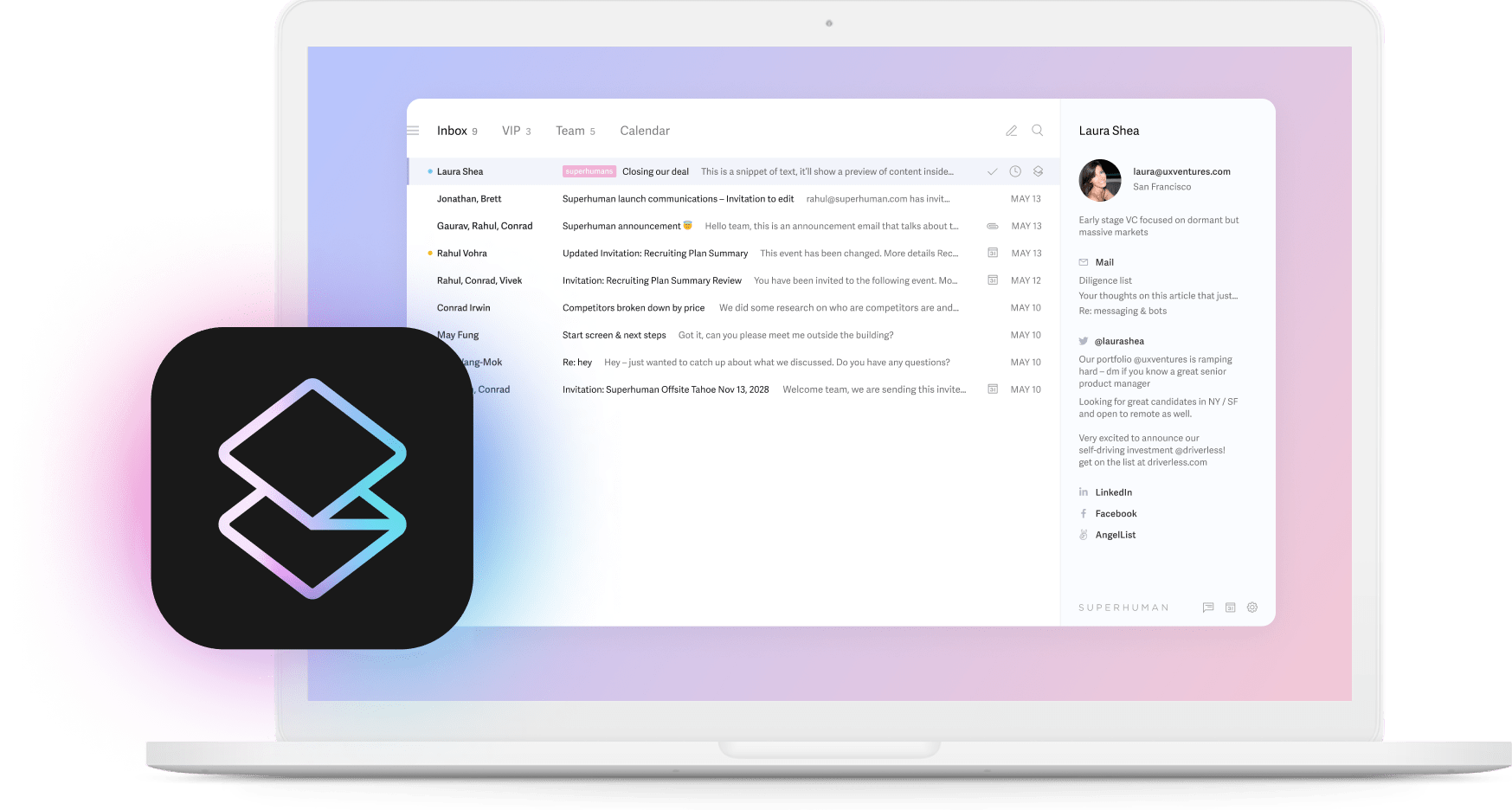
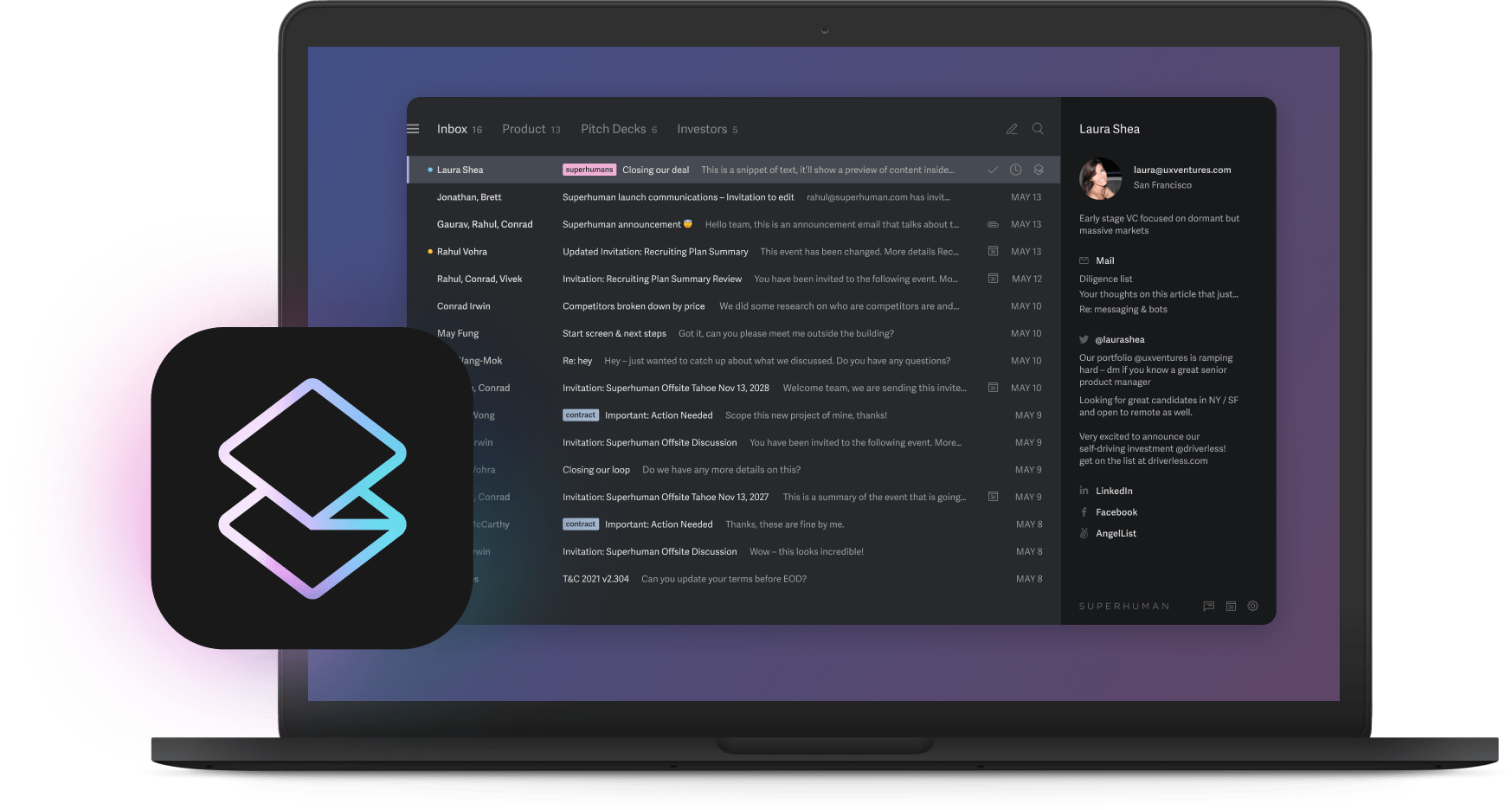
Superhuman Mail is the most productive email app ever made. It's built for professionals who want speed, clarity, and control in their inbox. Superhuman Mail helps you fly through your inbox and save 4 hours every week, making it especially powerful for anyone managing the 121-150 emails professionals receive daily.
Key features
- Split Inbox separates important messages from less urgent ones automatically, with customizable splits for VIPs, team messages, newsletters, and more
- Auto Labels use AI to categorize incoming messages like a world-class executive assistant, automatically classifying emails into categories like marketing, cold pitches, social updates, and messages requiring your response
- Instant Reply generates contextual draft responses that match your writing style, helping users write emails twice as fast
- Ask AI lets you query your inbox, calendar, and the web with natural language ("find positive quotes about our new feature" or "when is my flight")
- Auto Summarize displays a 1-line summary above every conversation that updates instantly as new emails arrive, so you can often skip reading the full thread
- Write with AI turns quick phrases into polished emails that sound like you, with options to improve, shorten, lengthen, or translate messages
- Keyboard shortcuts for blazing-fast processing, with Superhuman Command (Cmd+K) as your master control to find and take any action
- Remind Me brings messages back to your inbox at the perfect time so you never drop the ball on follow-ups
- Calendar integration lets you view your schedule, share availability, create events with AI, and find meeting times with teammates without leaving your inbox
- Snippets are reusable templates with built-in variables that automatically personalize messages with recipient names and custom placeholders
- CRM integrations with Salesforce, HubSpot, and Pipedrive bring full customer context into your inbox and let you update records without switching apps
Why it stands out
Superhuman Mail doesn't just help you sort emails. It transforms email into a strategic advantage. You can delegate faster, follow up reliably, and clear your inbox with less friction. Teams using Superhuman Mail respond 12 hours faster and handle twice as many emails in the same amount of time.
And Superhuman Mail’s AI capabilities go beyond basic sorting. Auto Archive can automatically archive marketing, cold pitches, and social network updates so they never clutter your inbox. Auto Reminders ensure you follow up on every external email if you don't hear back. And with features like Recent Opens and Smart Send for sales teams, you'll know exactly when prospects engage with your messages.
Pricing
- Starter: $25/month or $300/year (17% discount)
- Business: $33/month or $396/year, includes Ask AI, Auto Drafts, Custom Auto Labels, CRM integrations, and Recent Opens
- Enterprise: Custom pricing with SSO, advanced security, dedicated support, and team analytics
Pros
- Fastest email experience with sub-100ms load times
- AI features work automatically without manual activation
- Keyboard-first design dramatically speeds up processing
- Unified calendar view across Google and Outlook accounts
- Team collaboration with shared conversations and comments
- Works with existing Gmail and Outlook accounts
Cons
- Premium pricing compared to free alternatives
- Steeper learning curve for users new to keyboard shortcuts
- Some advanced AI features require Business plan
Use this if: You want the fastest, most intelligent email experience available. Superhuman Mail is the best choice for executives, founders, sales teams, and any professional who values their time.
2. Gmail Tabs: Best free built-in option
Gmail's Categories organize your inbox into tabs like Primary, Social, and Promotions. It's a simple, automatic starting point for users who don't need advanced features or receive relatively few emails.
Key features
- Machine learning automatically sorts incoming messages into categories
- Tabs make it easy to skim different message types separately
- No setup required, works out of the box
- Free with any Gmail account
What to know
Gmail Tabs are fine for low-volume users, but the limitations become apparent quickly. Important messages frequently get misfiled into Promotions or Social, and there's no way to customize the categories.
You won't find AI summarization, keyboard-first workflows, team collaboration, or the speed optimizations that power users need. For anyone processing more than 50 emails daily, Gmail Tabs will likely slow you down rather than speed you up.
Pricing
- Personal: Free with 15GB storage
- Google Workspace Starter: $7/user/month
- Google Workspace Business: $12-22/user/month, depending on features
Pros
- Completely free for personal use
- No setup or configuration required
- Integrates seamlessly with Google ecosystem
- Works on all devices automatically
Cons
- Limited to just 5 preset categories
- Important emails frequently misfiled
- No AI summarization or smart drafting
- No keyboard shortcuts for power users
- Can't customize sorting rules
- Inadequate for high-volume email
Use this if: You receive fewer than 50 emails per day and want a free, zero-effort solution. Most professionals will quickly outgrow it.
3. Outlook Focused Inbox: Best for Microsoft-only environments
If your organization is committed to Microsoft Outlook, the Focused Inbox separates your emails into Focused and Other. It learns what matters based on your habits and adapts over time.
Key features
- Prioritizes emails automatically based on your interaction patterns
- Syncs across Outlook desktop, mobile, and web
- Integrates with Teams, Calendar, and Microsoft To-Do
- Copilot integration available for AI-powered drafting (Enterprise plans)
What to know
Focused Inbox makes sense if you're locked into the Microsoft ecosystem and adding new tools isn't an option. However, the two-category system (Focused vs. Other) is a bit simplistic for most professionals. Sorting accuracy can sometimes be inconsistent, and power users may find themselves moving emails.
The AI features through Copilot require enterprise licensing ($30/user/month on top of existing subscriptions), making it one of the priciest options for comparable AI capabilities.
Pricing
- Free: Included with free Outlook.com accounts
- Microsoft 365 Business Basic: $6/user/month
- Microsoft 365 Business Standard: $12.50/user/month
- Microsoft 365 Business Premium: $22/user/month
- Copilot add-on: Additional $30/user/month for AI features
Pros
- Built into existing Microsoft 365 subscriptions
- Deep integration with Microsoft ecosystem
- Consistent experience across devices
- AI features available with Copilot add-on
Cons
- Only two categories severely limits usefulness
- Sorting accuracy is inconsistent
- AI features require expensive Copilot licensing
- Slower interface compared to dedicated email apps
- No customizable sorting rules
- Locked to Microsoft ecosystem
Use this if: Your organization mandates Microsoft tools and you have no flexibility to add other solutions.
4. Spark: Best free option with basic team features
Spark offers smart sorting along with basic collaborative features. The app works across Mac, Windows, iOS, and Android, making it accessible for teams on a tight budget.
Key features
- Smart Inbox groups emails by type (personal, newsletters, notifications)
- Shared inboxes, comments, and email delegation for team workflows
- Gatekeeper screens emails from new senders before they reach your inbox
- Cross-platform availability with consistent experience
What to know
Spark is a reasonable choice if your primary requirement is free team collaboration. However, the interface is slightly cluttered compared to more focused email apps, and the AI capabilities are somewhat behind the competition. For teams serious about productivity, the time lost to Spark's limitations may outweigh the cost savings.
Pricing
- Free: Basic features for individuals
- Premium: $4.99/user/month (annual) or $6.99/month
- Teams: $7.99/user/month (annual) with collaboration features
Pros
- Free tier available for individuals
- Basic team collaboration included
- Cross-platform with native apps
- Gatekeeper reduces unwanted emails
Cons
- Cluttered, busy interface
- AI capabilities lag behind competitors
- Sorting intelligence less accurate
- Speed slower than premium options
- Team features require learning curve
Use this if: You need free team collaboration and can tolerate the tradeoffs in speed and sorting accuracy.
5. Clean Email: Best for one-time inbox cleanup
Clean Email helps you declutter your inbox in bulk. It's useful if you've let thousands of emails pile up and need a one-time reset before adopting a proper email management system.
Key features
- Smart Folders automatically group messages into 30+ categories (Social, Finance, Travel, etc.)
- Auto Clean rules run continuously to maintain inbox hygiene
- One-click unsubscribe from newsletters and promotions
- Works with Gmail, Outlook, Yahoo, iCloud, and most IMAP providers
- Privacy-first approach, Clean Email doesn't sell your data
What to know
Clean Email is a cleanup utility, not a productivity tool. It's designed for the one-time task of digging out from under years of accumulated email, not for daily inbox management. You'll still need a proper email app for actually reading, writing, and organizing your ongoing communications. Think of it as a power washer for your inbox: useful once, but not something you use every day.
Pricing
- Free trial: 14 days
- Annual: $9.99/month billed yearly ($119.88/year)
- Monthly: $14.99/month
Pros
- Powerful bulk cleaning tools
- Works with any email provider
- Privacy-focused, no data selling
- 30+ automatic categories
Cons
- Not designed for daily email management
- Doesn't replace your email client
- Ongoing subscription for a one-time need
- Mobile app less feature-rich
- No AI writing or response features
- Won't improve your daily email speed
Use this if: You have thousands of old emails to clean up before switching to a real email management solution.
6. SaneBox: Best add-on for existing email clients
SaneBox works as a layer on top of any email service, including Gmail, Outlook, Yahoo, and iCloud. It sorts messages into folders like SaneLater and SaneNews based on your behavior patterns.
Key features
- AI sorting across any email provider without switching apps
- SaneLater folder for non-urgent messages
- SaneBlackHole for permanently blocking unwanted senders
- SaneReminders for follow-up tracking
- Do Not Disturb mode to batch email delivery
What to know
SaneBox takes a folder-based approach that feels dated compared to modern email apps. Because it's just an add-on, you're still stuck with your existing email client's limitations in speed, interface, and features.
The pricing also scales with the number of email accounts, so freelancers and professionals with multiple accounts can end up paying $300-500/year for what amounts to smart folders. You won't get AI writing assistance, keyboard shortcuts, or the speed optimizations that make a real difference in daily productivity.
Pricing
- Snack: $7/month (1 email account, 2 features)
- Lunch: $12/month (2 email accounts, 6 features)
- Dinner: $36/month (4 email accounts, all features)
- Annual discounts: Save 20-40% with yearly billing
Pros
- Works with any email provider
- AI learning improves over time
- SaneBlackHole permanently blocks senders
- Do Not Disturb batches email delivery
Cons
- Dated, folder-based approach
- Still stuck with slow email client underneath
- Pricing scales quite a bit with accounts
- No AI writing or response features
- No speed or interface improvements
- Requires adjusting to folder system
Use this if: You're unable to switch email clients but want some AI sorting on top of your existing setup.
7. Edison Mail: Best free mobile-only option
Edison Mail is a mobile app with smart sorting features for users who primarily check email on their phones.
Key features
- Smart Assistant finds travel plans, bills, packages, and subscriptions automatically
- One-tap unsubscribe and spam blocking
- Clean, fast mobile interface with quick actions
- Unified inbox for multiple email accounts
- Free to use
What to know
Edison Mail is strictly a mobile solution with no full desktop version. That's a significant limitation for anyone who does real work on a computer. The AI features are designed for personal email management, tracking packages and bills, rather than professional productivity.
Past privacy concerns (Edison was caught selling anonymized user data) have been addressed, but the history may give some users pause. For serious email management, you'll need something that works across all your devices.
Pricing
- Free: Full-featured mobile app
- Edison Mail+: $14.99/year for premium features like extra cloud storage and priority support
Pros
- Completely free for most features
- Clean mobile interface
- Smart Assistant surfaces travel and package info
- Unified inbox across accounts
Cons
- No full desktop version
- Inadequate for professional use
- AI limited to personal use cases
- Can't process high volumes efficiently
- Missing keyboard shortcuts and power features
Use this if: You only check personal email on your phone and don't need desktop access or professional features.
Common email sorting mistakes to avoid
Even with the best email sorting app, these mistakes can undermine your productivity:
- Over-categorizing with too many folders or labels. More than 7-10 categories creates confusion. Keep your system simple enough to use consistently.
- Setting filters once and never adjusting them. Your email patterns change. Review and update your sorting rules quarterly.
- Ignoring the AI learning features. Modern email sorting apps improve when you correct their mistakes. Move mis-sorted messages to train the algorithm.
- Treating sorting as a one-time cleanup. Email organization is an ongoing process. Schedule 15 minutes weekly to maintain your system.
- Using sorting as a procrastination tool. Organizing emails feels productive but doesn't advance your work. Process messages, don't just shuffle them.
The ROI of email productivity tools: What executives need to know
Before choosing an email sorting app, it's worth understanding the measurable business impact these tools can deliver.
Productivity improvements
AI-native email management delivers concrete gains across organizations:
- Companies using AI-native email management achieve a 39% improvement in general productivity
- Knowledge workers who use AI to sort email see a 15% improvement in email handling efficiency
- Teams with structured email management see up to 25% improvement in employee focus time
Financial returns
The business case for email productivity tools is compelling. Microsoft 365 productivity suites delivered a 223% return on investment with a net present value of $631,000 over three years for a 150-employee organization, approximately $4,207 NPV per employee.
Executive time savings
Email productivity matters most at the leadership level. According to PwC's CEO Survey, 40% of CEO time spent on routine tasks including email is perceived as inefficient. Meanwhile, 77% of CEOs believe AI is ushering in a new business era, with many prioritizing AI applications for email and communication management.
Critical AI capabilities that matter most
When evaluating email sorting apps, four AI capabilities drive measurable productivity improvements for high-volume users:
1. Intelligent triage and prioritization
AI that sorts by urgency and learns your patterns achieves a 15% improvement in email handling efficiency for knowledge workers. This intelligent prioritization ensures critical messages receive immediate attention while low-priority items wait.
2. AI-native summarization
Email conversation summarization is a key productivity driver, helping you quickly understand lengthy conversations without reading every message. This matters most after meetings or time away from your inbox.
3. Automated response generation
Smart drafting that adapts to your communication patterns reduces the cognitive load of email composition while maintaining authentic, personal communication. Professionals using AI-assisted email tools save 9 hours per month on email and communication tasks.
4. Cross-platform integration
The most effective email sorting apps work seamlessly between email, calendar, and document workflows. Context switching causes a 40% productivity loss, with workers requiring an average of 23 minutes to regain focus after each distraction. Integration eliminates this overhead.
How to choose the right email sorting app
For most professionals, Superhuman Mail is the clear choice. It combines the best AI, the fastest interface, and the deepest integrations into one complete solution. But if your situation has specific constraints:
- Locked into Microsoft with no flexibility? Outlook Focused Inbox is your only built-in option
- Zero budget and low email volume? Gmail Tabs costs nothing but offers little
- Need free team collaboration? Spark provides basic shared inbox features
- Thousands of old emails to purge first? Clean Email can help with one-time cleanup
- Can't switch email clients? SaneBox adds sorting to your existing setup
- Only check email on mobile? Edison Mail works for personal, phone-only use
The question isn't really which email sorting app is best. It's whether you're ready to invest in a tool that will actually transform how you work.
Take control of your inbox today
The right email sorting app does more than clean up your inbox. It gives you focus, improves your response time from hours to minutes, and saves hours every week. That's time that knowledge workers currently spend managing email instead of high-value work.
If you're ready to stop fighting your inbox and start managing it on your terms, Superhuman Mail is the top choice. It's the most productive email app ever made, built for professionals who want email to feel effortless.
With AI-native email management capabilities, teams using Superhuman Mail respond 12 hours faster and handle twice as many emails in the same amount of time. Your inbox will feel 10x lighter, and workflows become effortless.