Introducing: Auto Drafts 2.0 ✨
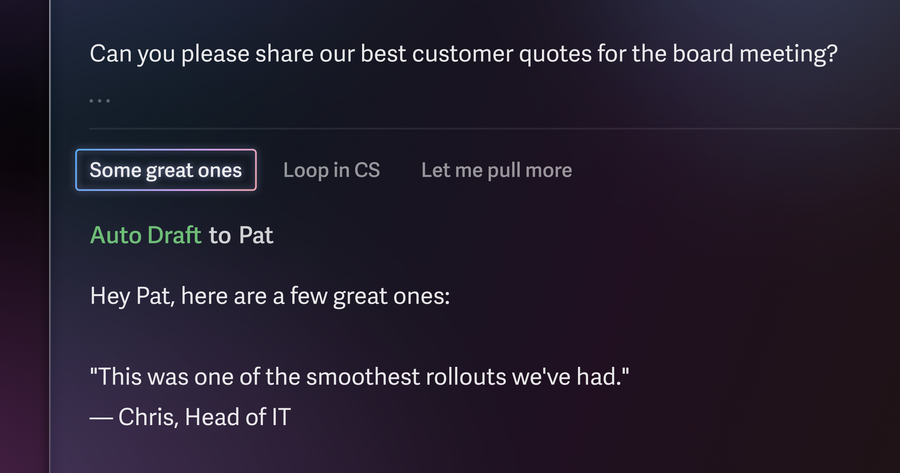

The hardest part of writing is starting. That's why it's so much faster to edit than face a blank page.
With Auto Drafts, you skip the cold start.
We started with Auto Drafts for follow-up emails, so you could follow up on time, every time. Then we built Auto Drafts for scheduling, so you could spend less time managing your time.
Today, with Auto Drafts 2.0, every message that needs a reply comes with a draft. You can just edit and send.
Auto Drafts now gather context from your inbox, your calendar, and the web. They can use information from other emails, insert availability, and conduct research online. They adapt to your unique style for each person, using the tone, length, and structure from emails you’ve sent before. And as time passes and facts change, they keep themselves up to date.
Auto Drafts are now more complete, accurate, and ready to send.
Today, 40% of Auto Drafts are sent within 1 day, and 60% are sent unedited. Auto Drafts also save users 9 minutes per draft. If you reply to just 4 emails a day, that's 3 hours back every week!
See what early users have to say:
"As far as AIs go, Auto Drafts seem to be the best pre-formulated replies I’ve found yet."
"My first Auto Draft experience startled me a bit because it sounded so much like me — it was spot on."
"The amount of time that Auto Drafts have saved me is… well, life-changing. I was spending hours responding to my inbound, and now I just make a few adjustments to the draft. It has effectively decreased my typing time by 60% easily."
"A client emailed me to send details for two car hire bookings after losing the confirmations. Superhuman had already found the relevant emails, taken out all the relevant information and drafted an email that could have been written by me! I was blown away, and I'm excited."
Personalization
To further personalize Auto Drafts, click Settings → Personalization. You can set preferences like "avoid scheduling on Wednesdays", "always use lowercase", or "always use this booking link for intro calls."
To add files and links that Auto Drafts can refer to, click Settings → Knowledge Base. You can even share this knowledge across your team, so everyone can move faster with messaging and answers that are grounded, accurate, and up to date.
Get started
To enable Auto Drafts, click Settings → Auto Drafts, and toggle Responses.
You'll start to see Auto Drafts on emails that need a reply. You'll also find them in your Drafts folder.
Auto Drafts are available on our Business & Enterprise plans, along with the Superhuman Mail MCP, Ask AI, and Superhuman Mail for Sales, including Smart Send, Recent Opens, and CRM integrations.
Try Superhuman MailSoon, Auto Drafts will connect with all your tools, like Slack, your CRM, and your meeting notes.
I can’t wait to hear what you think!
Onwards 🚀
Rahul